Turn Dopppel's alerts and emails on or off
You choose what reaches you. There is one switch for each kind of message, and you can turn any of them off.
2 min readMaking it yoursUpdated 22 September 2026
What it is
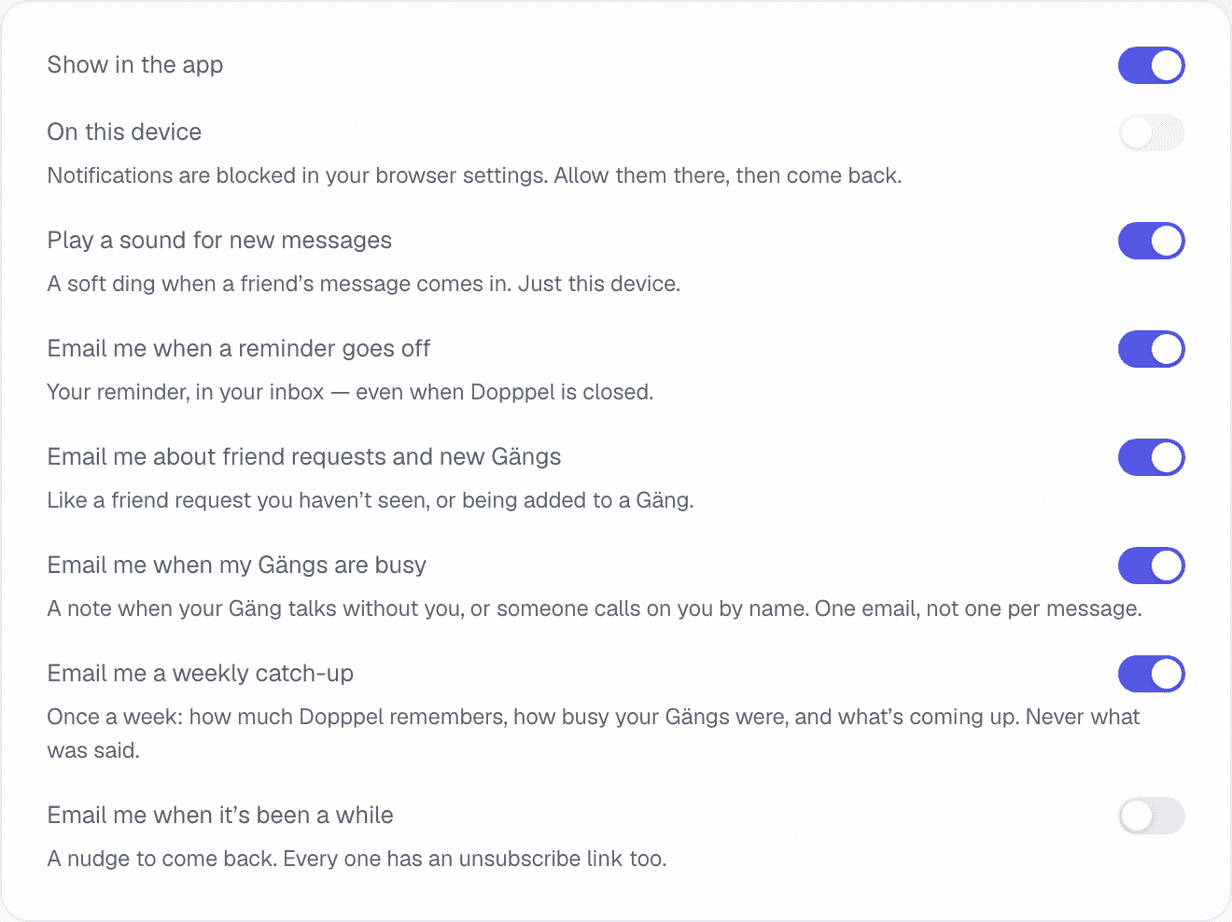
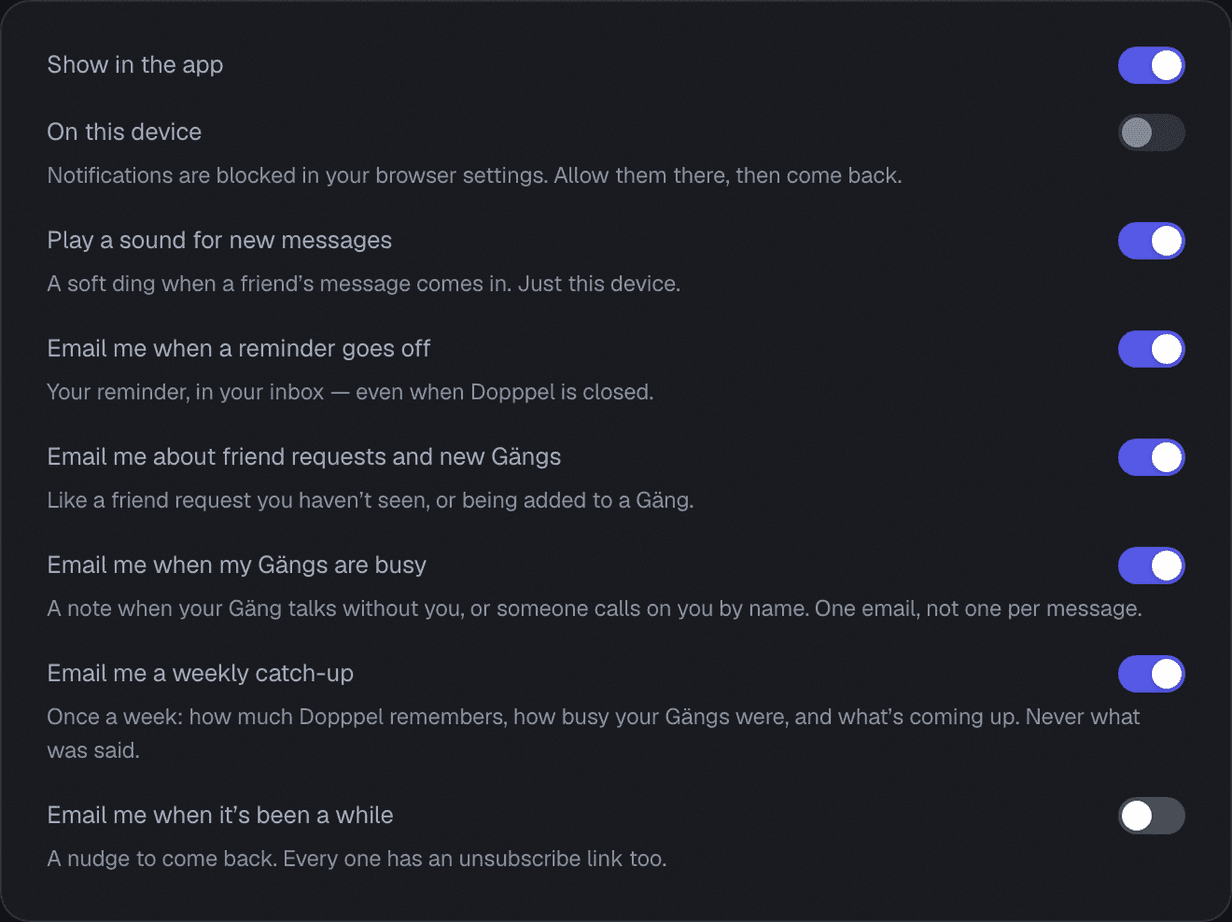
Open Settings and pick Notifications. It is a list of switches, and each one names the thing it sends.
The first few are about right now: show it in the app, ping this device even when Dopppel is closed, and play a soft ding when a friend writes. The device one and the sound one belong to the phone or computer you are on, not to your account.
The rest are email. One when a reminder goes off. One for friend requests and new Gängs. One when your Gängs are busy without you. One weekly catch-up, which never says what was talked about. And one nudge when it has been a while. Every email has an unsubscribe link too.
How to use it
- 1Open Settings from your account menu, then pick Notifications.
- 2Read the line under each switch. It says exactly what that one sends.
- 3Tap a switch to turn it on or off. It saves on its own.
- 4For alerts on your phone, tap "On this device" and say yes when your browser asks.
Questions
How do I stop the emails?
Open Settings, pick Notifications, and turn off the ones you do not want. Every email also has an unsubscribe link.
Why is "On this device" greyed out?
Your browser is blocking it, or this browser cannot do it. Allow alerts in your browser settings and come back. On an iPhone, add Dopppel to your Home Screen first.
What is in the weekly catch-up?
How much Dopppel remembers, how busy your Gängs were, and what is coming up. Never what was said.
Will I get one email per message in a busy Gäng?
No. You get one note when your Gäng talks without you, or when someone calls on you by name.
Do these switches follow me to my other phone?
The email ones do. "On this device" and the message sound belong to the phone or computer you set them on.
Was this helpful?